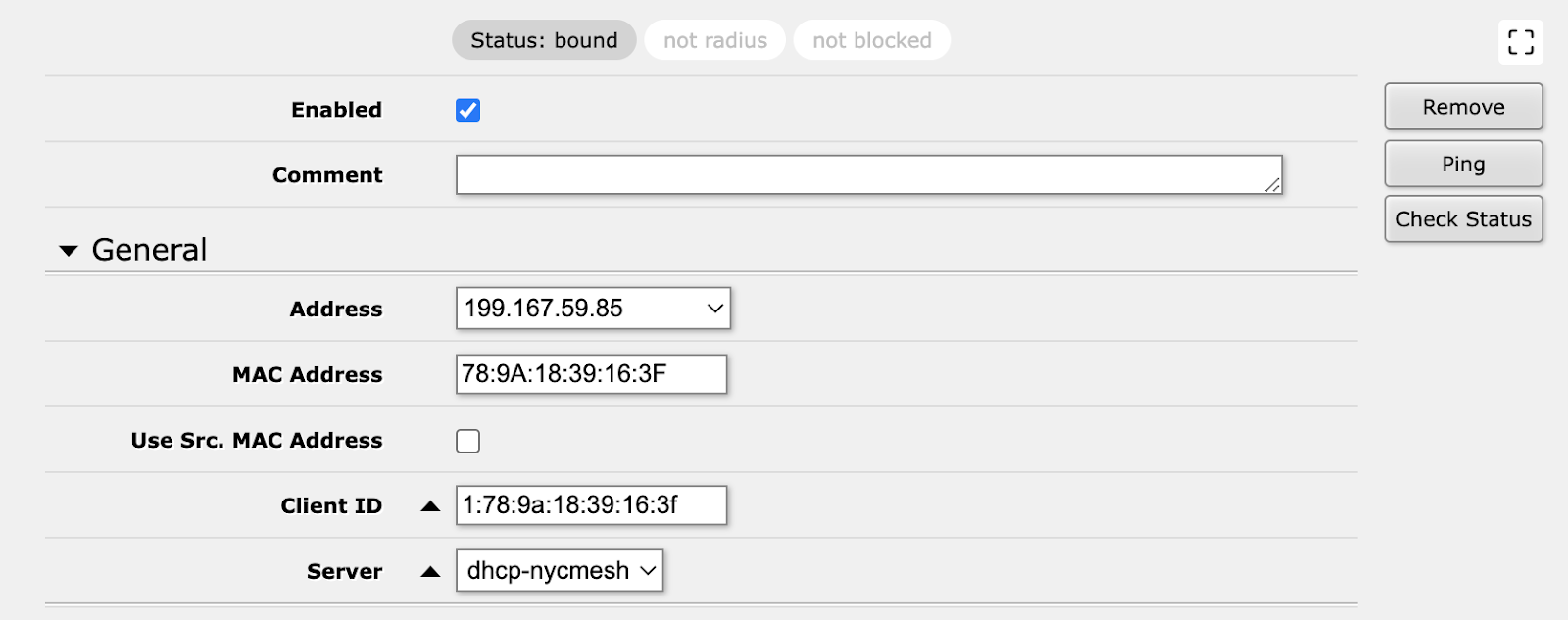
Use of Public IP
Attributing a Public IP to a member (via DHCP).
Public IP means the member’s device is accessible from the Internet (from anywhere in the world). This opens up as well the risk for the member to be hacked as well as all sorts of issues emanating from non-scrupulous sources on the net.
Some ill-intentioned people on the www are scanning the web to find "opening", etc...
1/ Usually a member wants to access a ressource such as a NAS, video camera, etc.. on its LAN (home network) for private use and not share with others. In this case it is better to use TailScale, ZeroTier or similar. This give better security as only the member has access (and can give access to whomever they want to).
2/ An alternative is for the member to request a VPN into Mesh and access his ressource (NAS) via the Mesh IP address.
3/ The member has a server (a Web server for example) and want to give access to it to anyone in the world (with the risk associated with it). In this case they need a Public IP address.
NYC Mesh will allocate a Public IP to the member and hand over that IP to the members device (router) via DHCP.
Pick a free public IP in the Public IP range list ( 🔺in the correct subnet please!). Make sure it is free (unused). Check a routing table in one of the routers to double check it is not in use.
The Public IP will be associated with the member’s device (handed over to the device) via the DHCP server of the closest NYC Mesh router (typically the Omni they are connected to).
All the ports will be “opened” on the Mesh side. It is for the member to manage its ports forwarding and the necessary firewall rules to protect its LAN.
This is a simpler and effective method* and much easier to set up as well as much safer for the Mesh network. *It uses less resources on the router as the router only routes the packets. (Using Nat and filters use more resources (CPU), when it is done on the Mesh router).
You need first to know the MAC address of the member’s router/device where to allocate the Public IP. The easiest way is to have that router/device get an IP via DHCP and make that IP static in ROS.
Setup Instructions:
Here we are going to add an example Public IP of 199.167.59.85/32
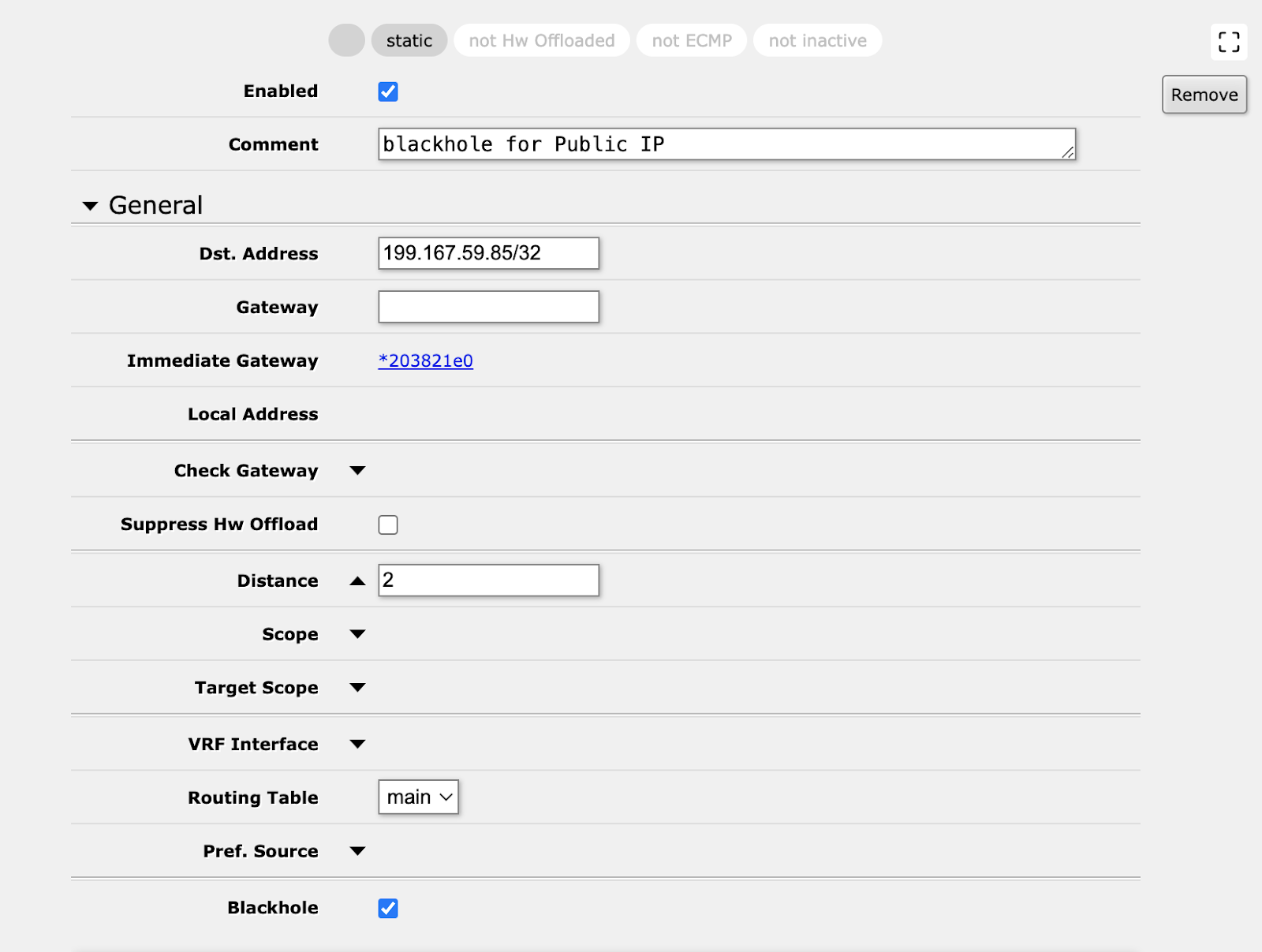
1. In IP>Routes
Add a blackhole route, Distance 2
Blackhole routing, also known as null routing, is a network route that sends matching packets to a "black hole" instead of forwarding them. This acts as a limited firewall, dropping or ignoring the packets
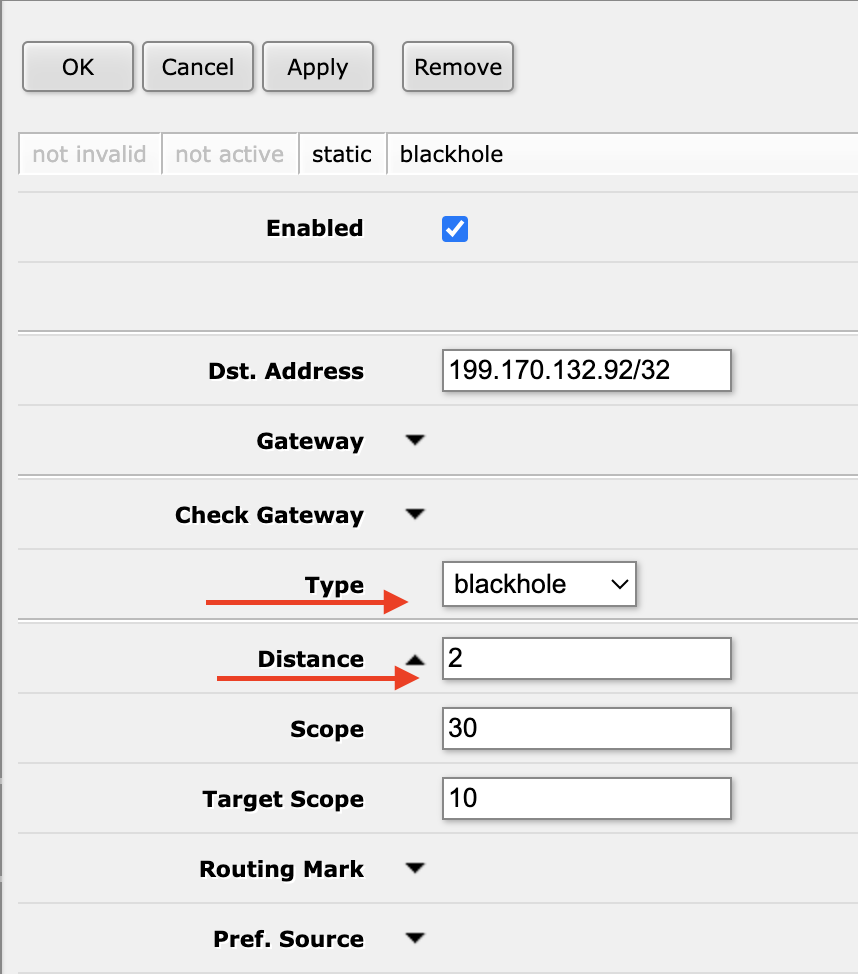
To add a blackhole route in RouterOS (ROS) 6 (illustation for a different Public IP)
2. In IP>Routes
Add the route (gateway) where to route the packet for that IP address. Distance 1 (default).
This should be the bridge that the destination router for this port forward is on. In most cases this should be the "mesh" bridge.
Note that the Gateway (destination port syntax is different in ROS6 and ROS7)
RouterOS 7
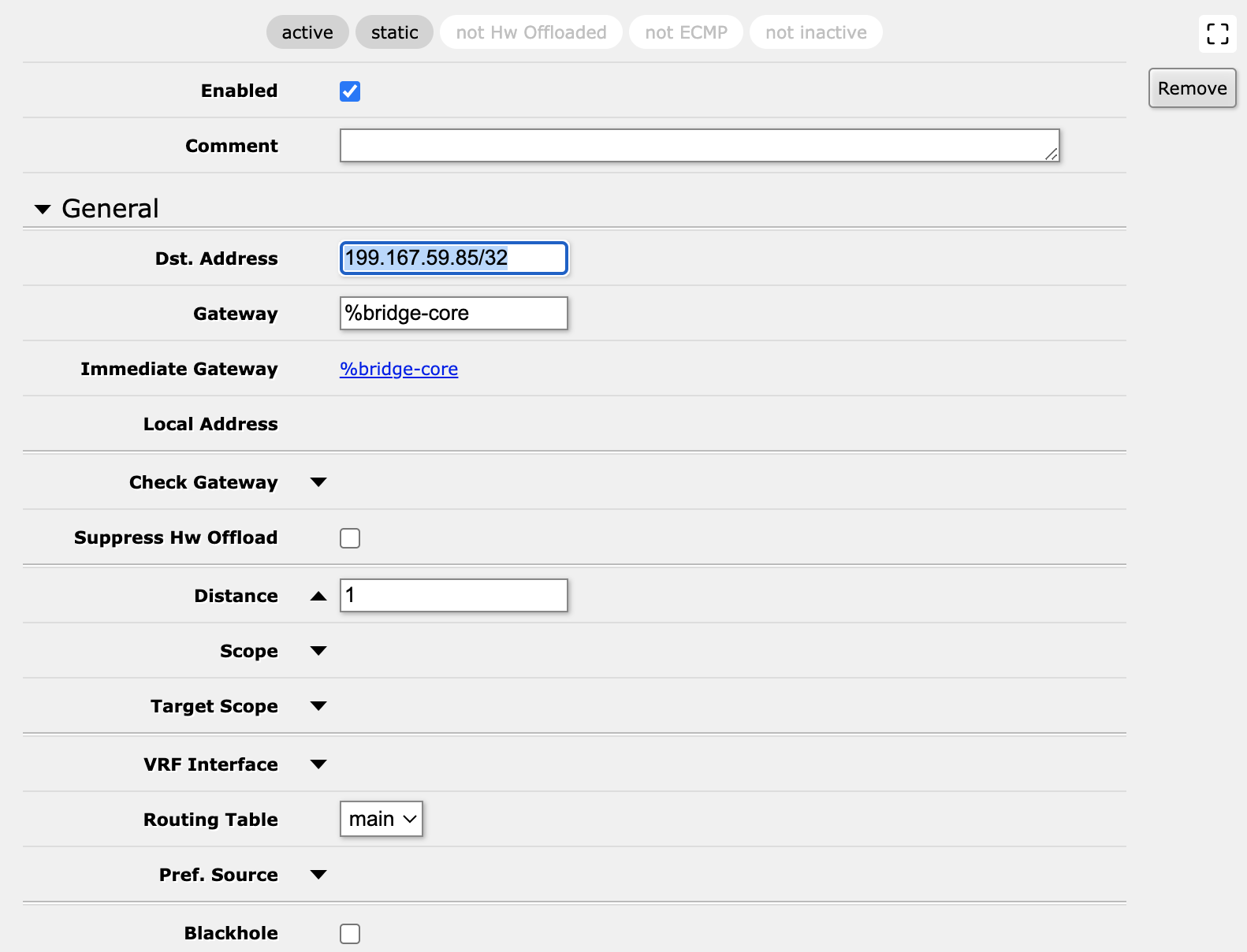
RouterOS 6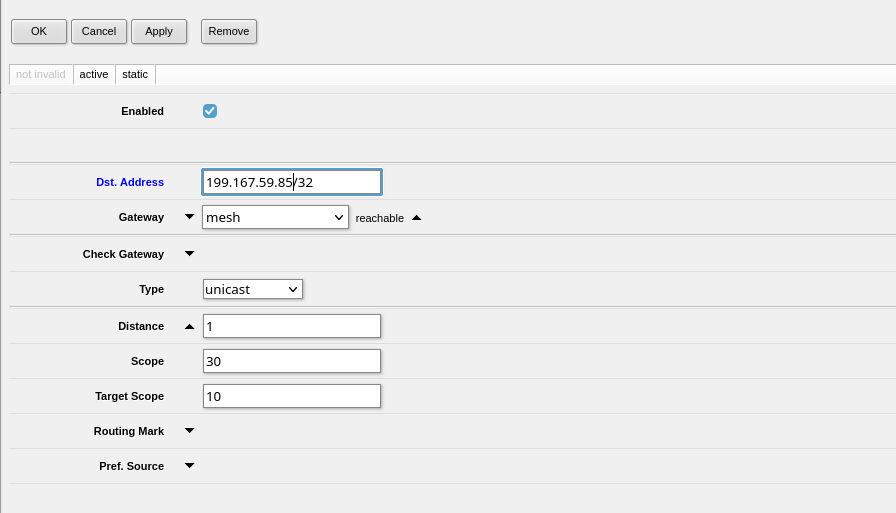
3. Have OSPF announce the static routes. Routing > OSPF > Instances
in #Routing:OSPF.Instances select the "default" and change "Redistribute Static Routes" to "As Type 1" 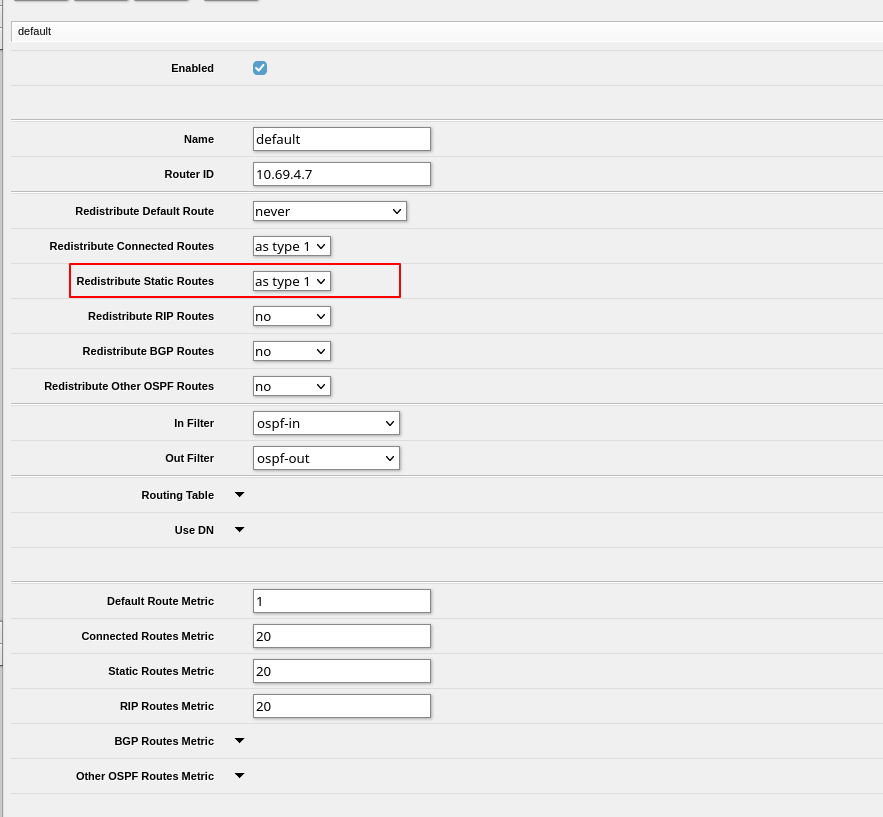
4. Confirm that route is being redistributed by OSPF
At this point check in a different router/omni that the route has been added (IP/routes). It should already be propagated by ospf.
- Log in to a different router somewhere else on the mesh (ie omni on a different rooftop)
- Go to IP>Routes
- CMD + F (or your computers shortcut) to search on the page
- Paste the public IP and see if it appears in the list
5. Add the network in IP > DHCP Server > Networks
Create a new network with the public IP address and the gateway of the Omni / Core router.
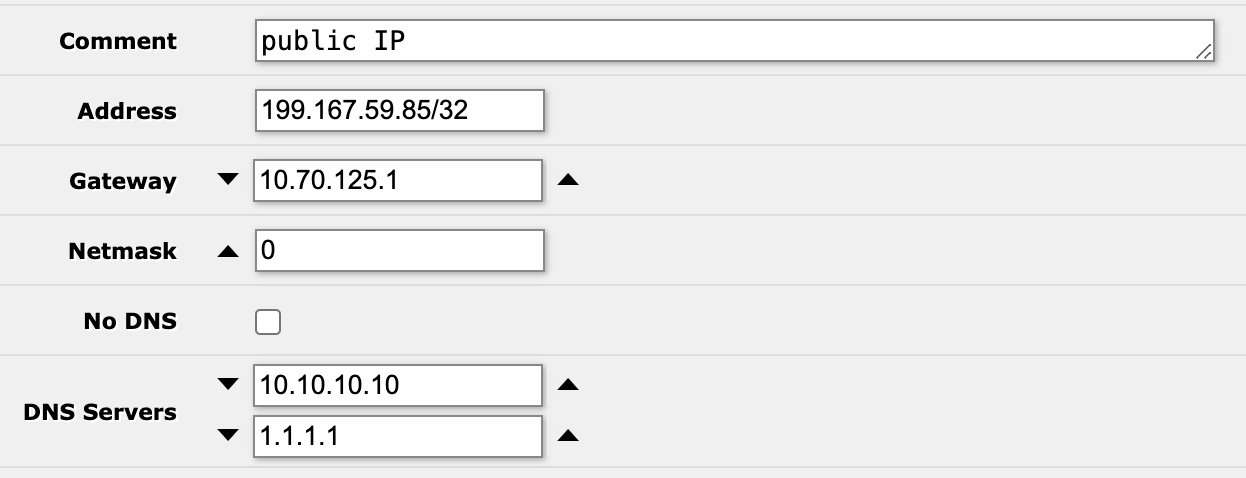
Note the Gateway is the address of the Omni/router handing over the Public IP via DHCP.
Go to IP>Addresses and look for the 10.96.x.x or 10.70.x.x on the "mesh" interface
In this case because it is a Public IP we add an external DNS server as the alternative to Mesh DNS.
E/ Add the DHCP address (replace the Mesh IP in the static lease for the member’s router).
Find the static IP lease for the member's router (TP-Link or otherwise)